To create bulk label, you will require Avery Design & Print software installed on your computer. Open the Avery software to start creating bulk labels: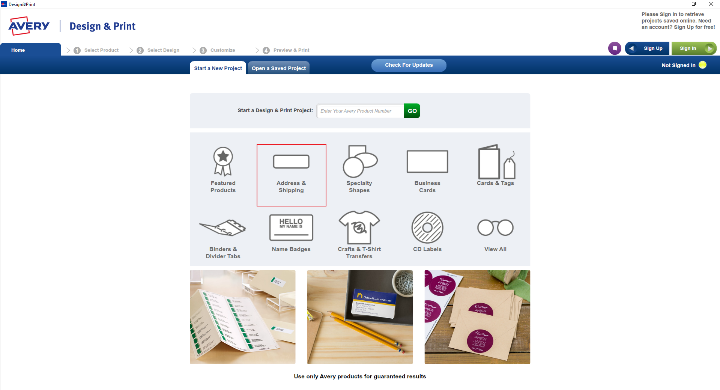
Select ‘Address & Shipping’ option
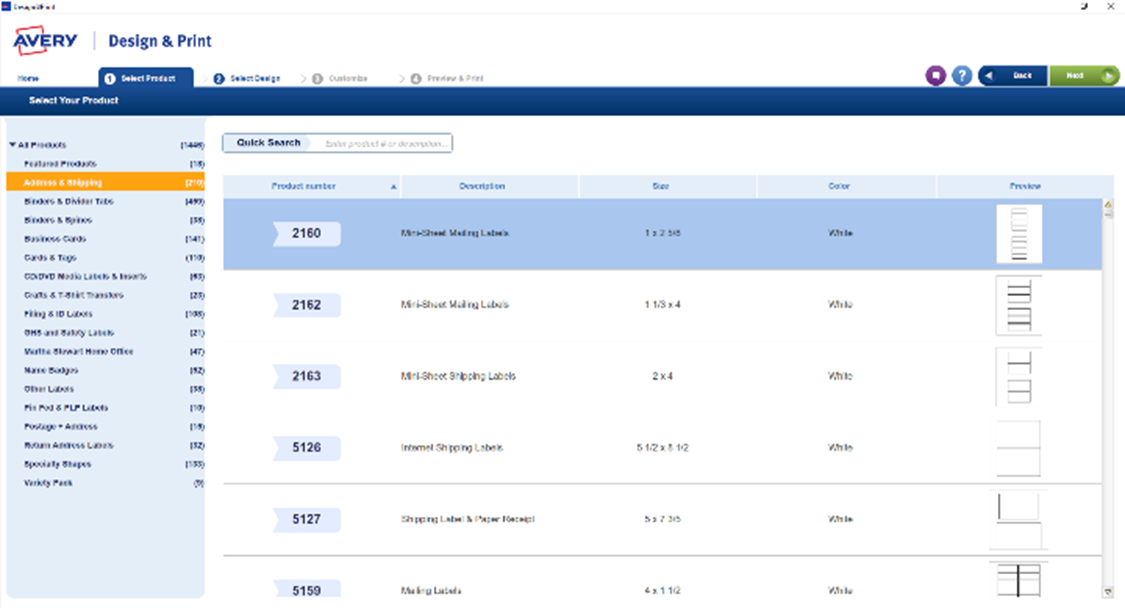
Search for the corresponding product number (this number can be located on the box of the label). Our default is 5162.
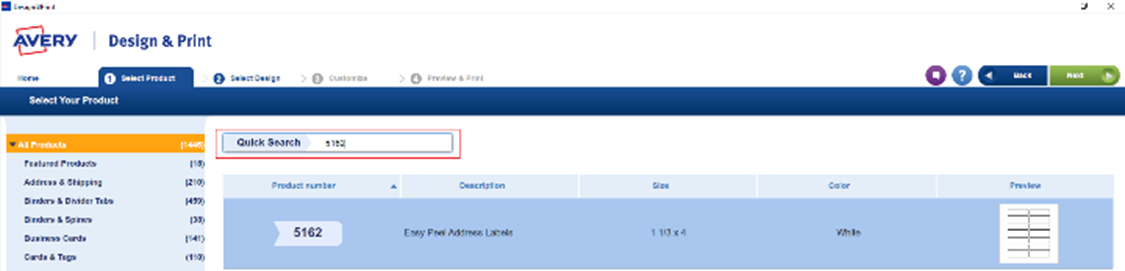
Type the product number in the quick search field and hit enter. The software will locate the correct template. Double click on the product number associated with your search to activate the template.
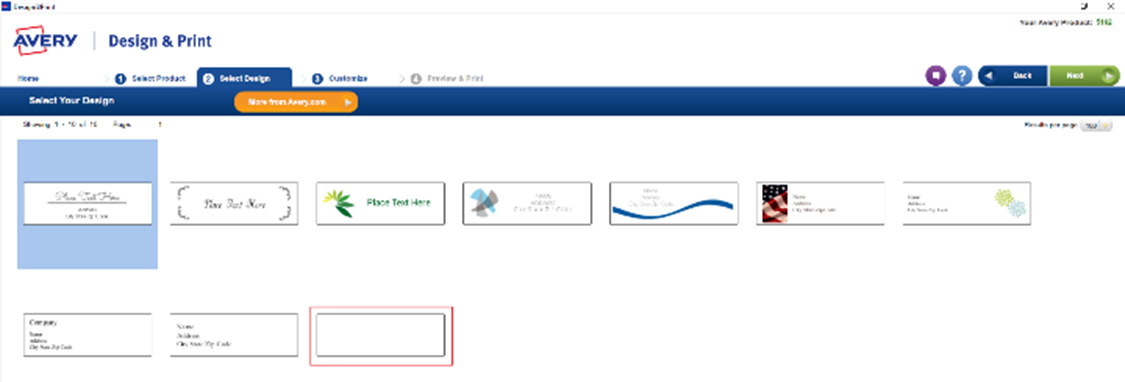
On the design selection screen, select the blank design by double clicking on the blank label.
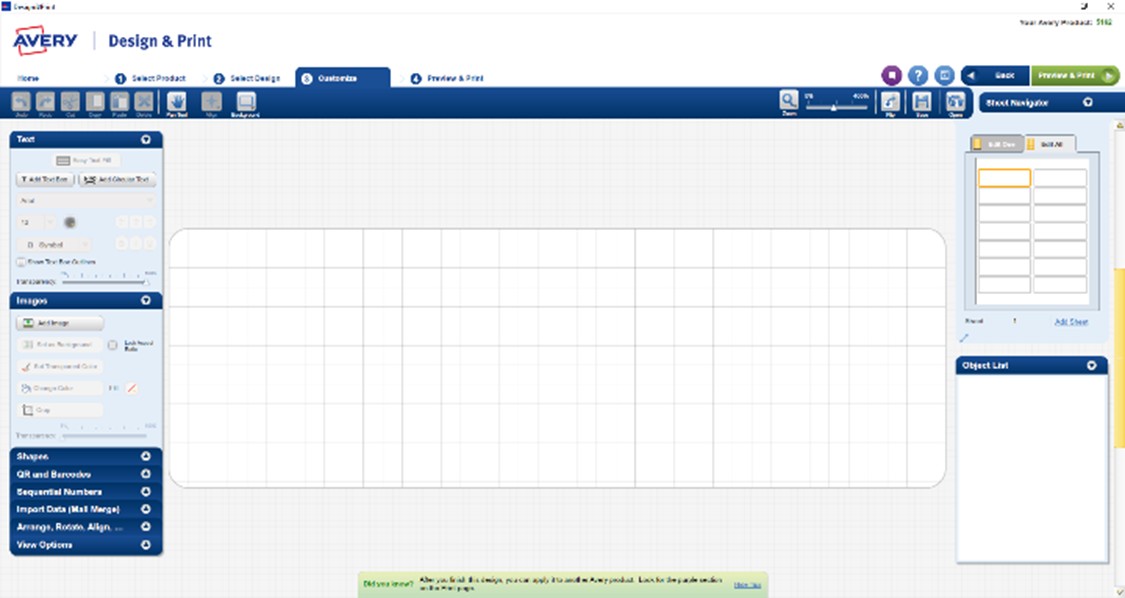
A blank label will be created, and you can start customizing your label from this screen.
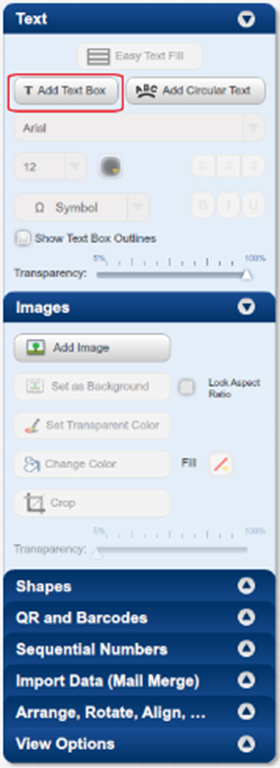
From the toolbox located on the left side. You will use the ‘Add Text Box’ to add all your headers on the label. The headers are just your titles such as username, mobile number etc.
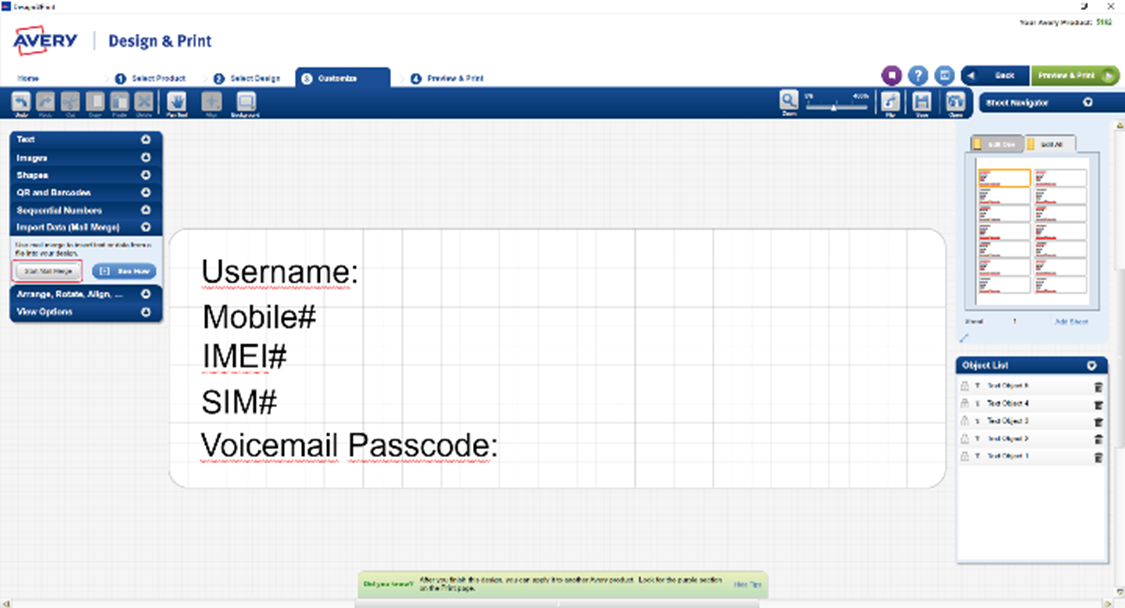
You will only need to add one text box to enter all your headers.
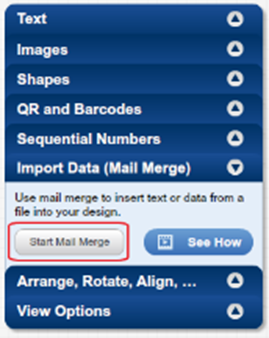
Once all the headers have been laid out, select ‘Start Mail Merge’ from the tool box under the ‘Import Data (Mail Merge)’ category to begin importing the data from an already existing excel file.
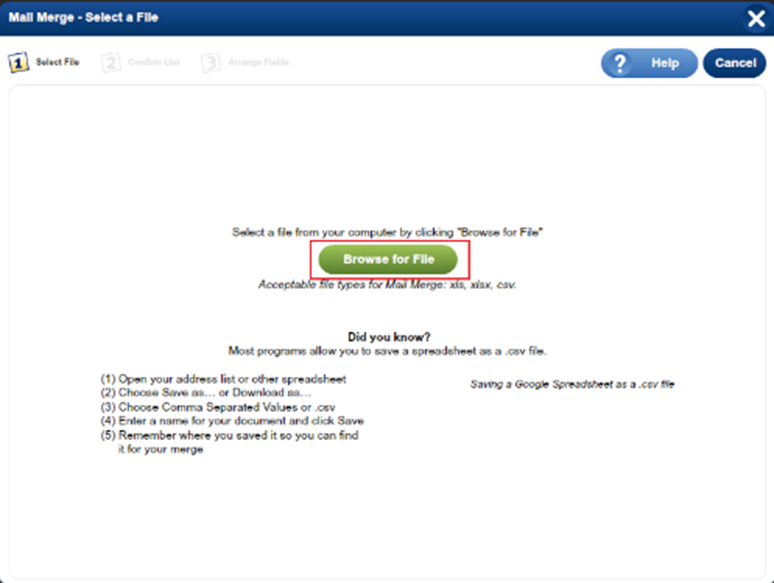
Click on ‘Browse for File’ to locate the excel file to import the data from
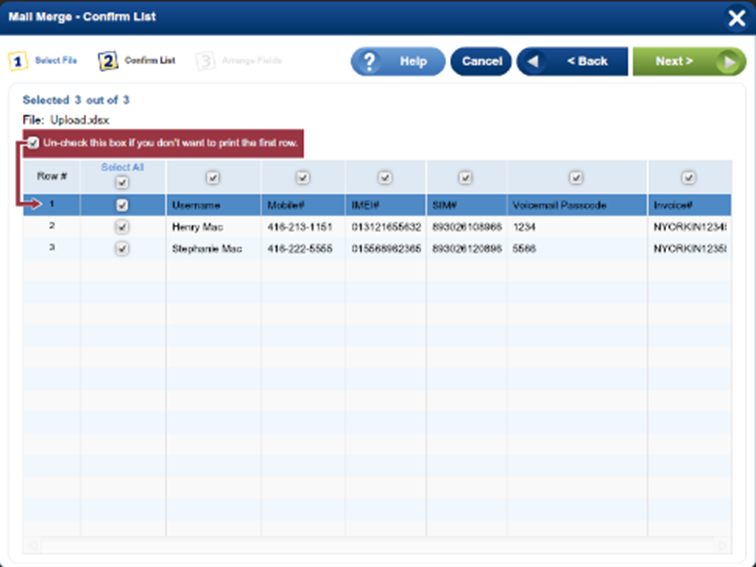
Once the file has been uploaded you will be taken the confirm list. Ensure that all fields are accurate with the corresponding headers and click on next.
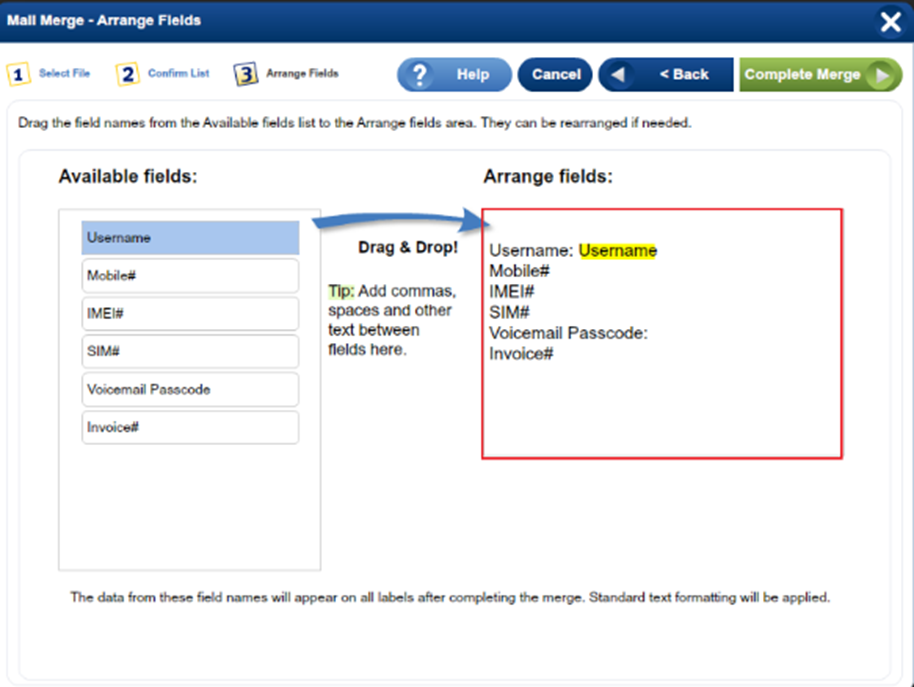
In this section type the headers on the right-hand side again and drag the corresponding fields next to the headers.
Once all the field have been assigned to the right side click on ‘Complete Merge’.
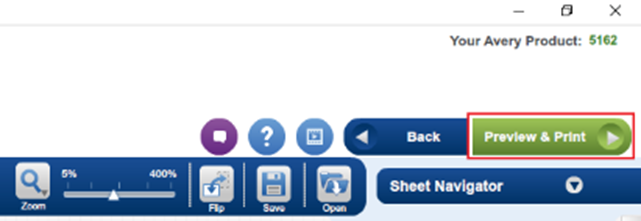
The labels have been completed. Click on ‘Preview & Print’