Android Instructions
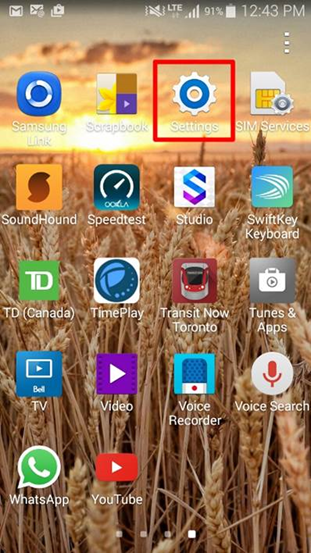
Open up your app browser page and tap on “Settings”
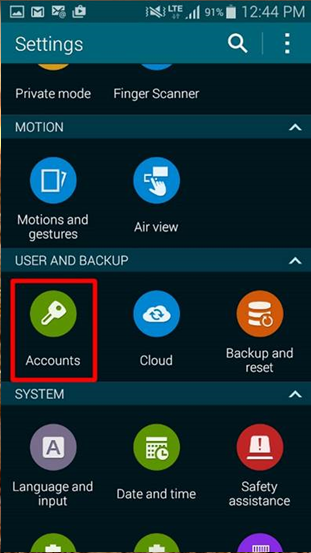
Then tap on “Accounts”
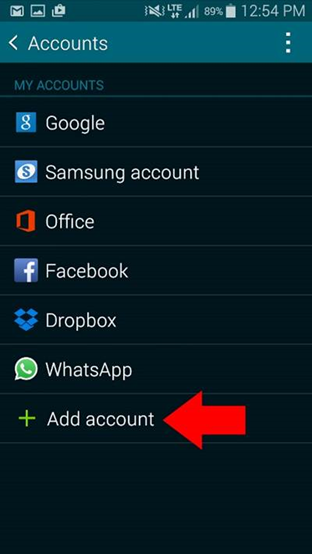
On the accounts page, tap on “Add account”
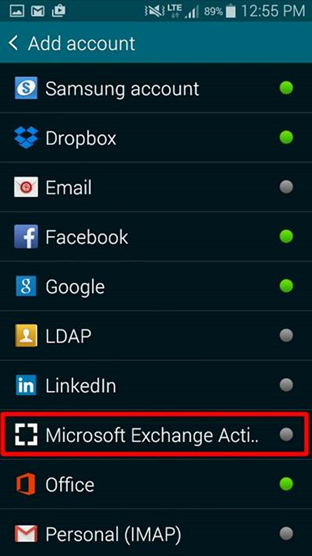
On the next page, tap on “Microsoft Exchange ActiveSync”
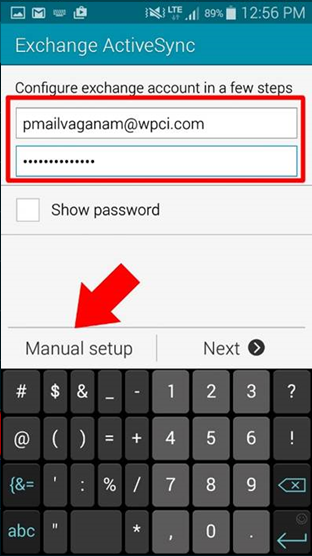
On the Exchange ActiveSync page, enter your email address and password and then tap on “Manual setup”
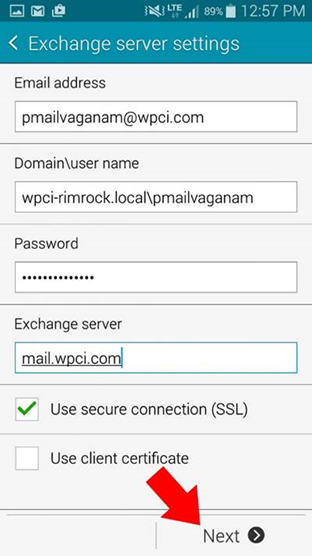
Enter the settings are shown below. After you have entered all the details tap on “Next”
- Email address: (should already be filled in)
- Domain\user name: wpci-rimrock.local\(the user name will the part before the @wpci.com of your email address)
- Password: (would already be filled in)
- Exchange server: mail.wpci.com
- Use secure connection (SSL): needs to be ticked (will be ticked by default)
- Leave everything else as it is and tap on “Next”
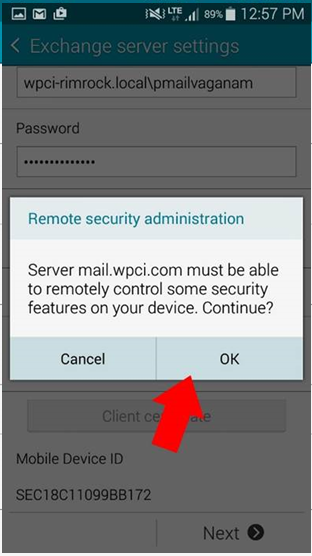
Tap on “OK” on this page
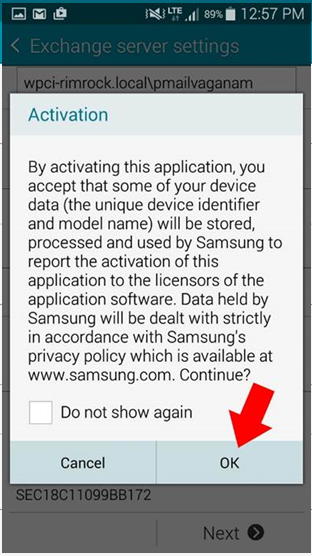
Tap on “OK” on this page too
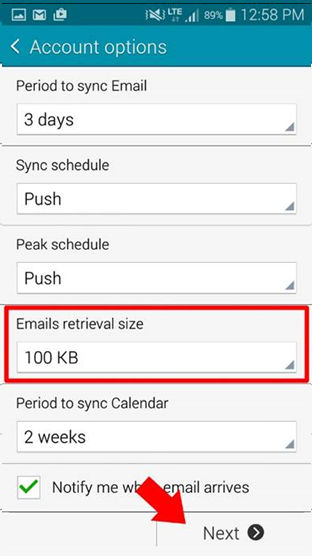
Change the “Email retrieval size” to 100 KB and tap on “Next”
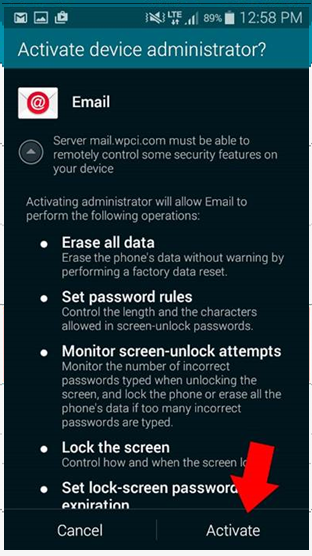
On this page, tap on “Activate”
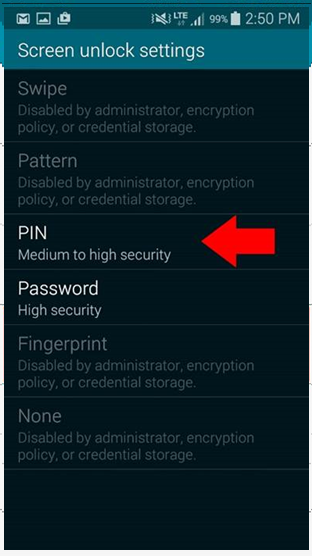
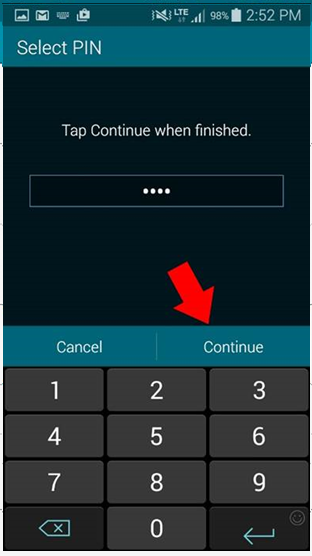
If you already had a login pin, this page will not be show. If you do not see this page then you can skip to next step. If you see this page, then tap on “PIN”
In this page, you can type the pin you want and tap on “Continue” you will be asked to type the pin again to confirm and tap on “Continue” again.
Tap on “Done” in this page and that’s it. The phone will do a bit of background voodoo to sync all your contacts and emails to the new phone which will take about 5 to 10 minutes (or even faster depending on your internet speed) and that’s it. The phone is primed and ready to go.
iPhone Instructions
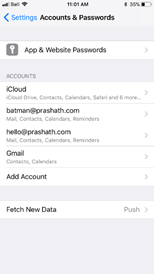
Please go to Settings > Accounts & Passwords and then tap on “Add Account”
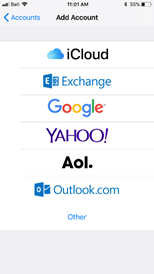
Tap on “Exchange”
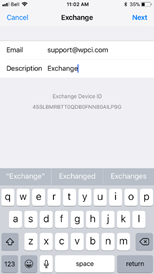
Type in your full email address and any name to describe the account and tap on “Next”
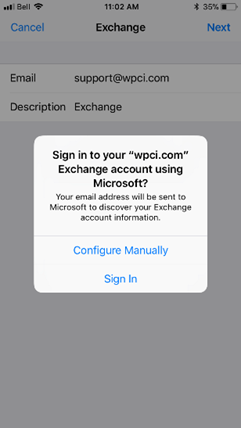
On the popup window, tap on “Configure Manually”
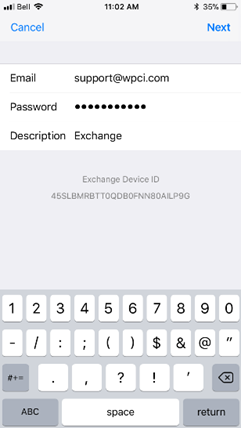
Enter the password for your email account and touch on “Next”
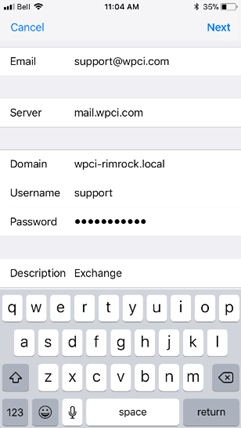
Fill the settings on the page as follows and touch on “Next”:
- Email: Enter your email address in full
- Server: mail.wpci.com
- Domain: wpci-rimrock.local
- Username: first part of your email address before the @wpci.com
- Password: Enter your email password (should already be there)
- Description: Any name to identify the account on the mail app (should already be there)
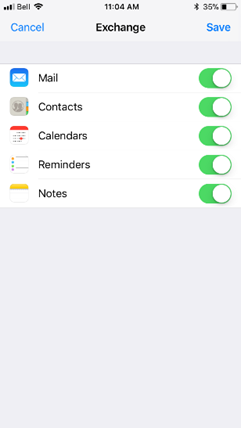
You will get a tick next to the settings if everything was entered correctly and you will be taken to the following page. On this page touch on “Save”