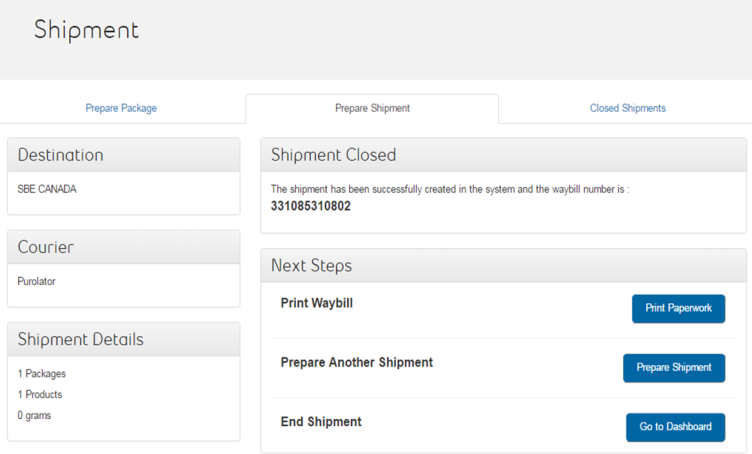
Before you can create a shipment, a repair ticket must exist in device HUB.
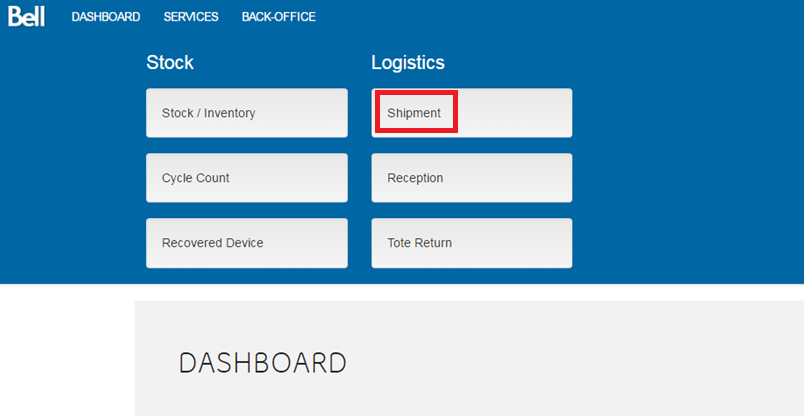
Login to device hub, click ‘Back-Office’. Under Logistics select ‘Shipment’
Check the ‘Prepare Package’ tab for any service requests to ship to SBE. Select the checkbox next to the service request to include in the tote, and then click ‘Prepare Package’.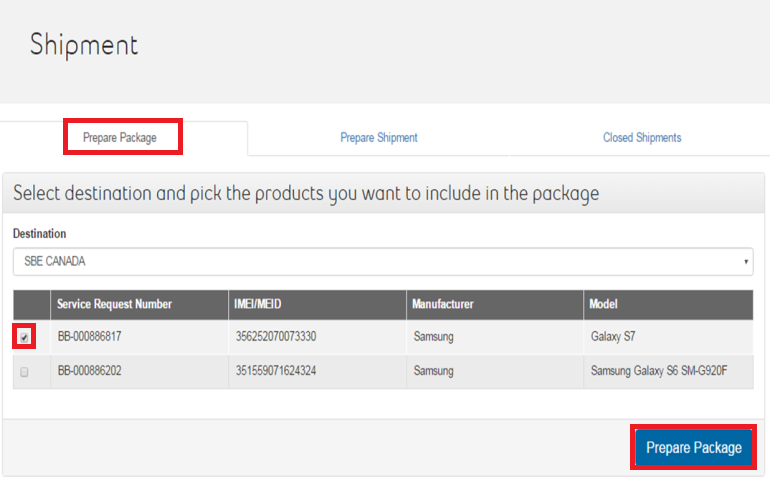
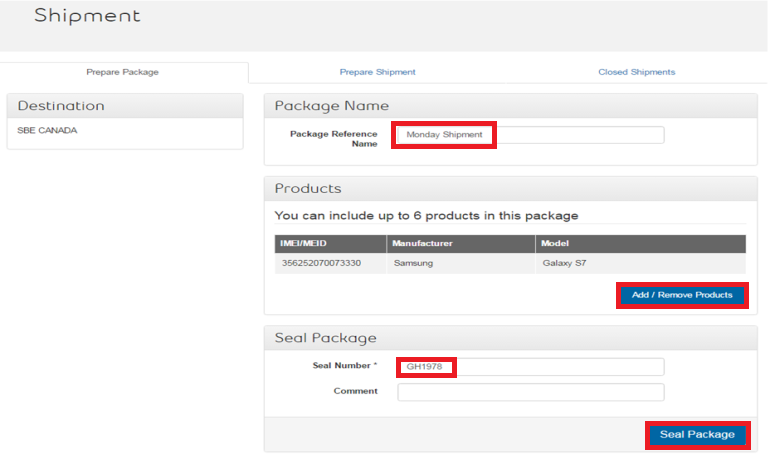
Enter a Package Reference Name. For example, Monday Shipment.
You can include up to 6 devices in the tote and they are listed in the Products section.
In the Seal Number field, enter the package seal number. Click Seal Package.
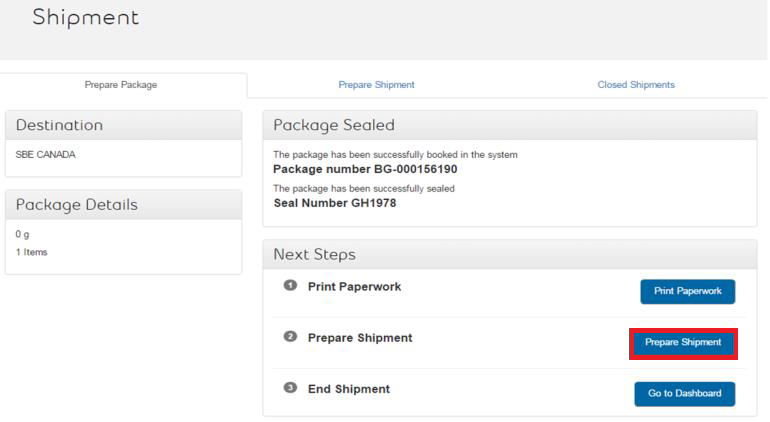
Click Prepare Shipment.
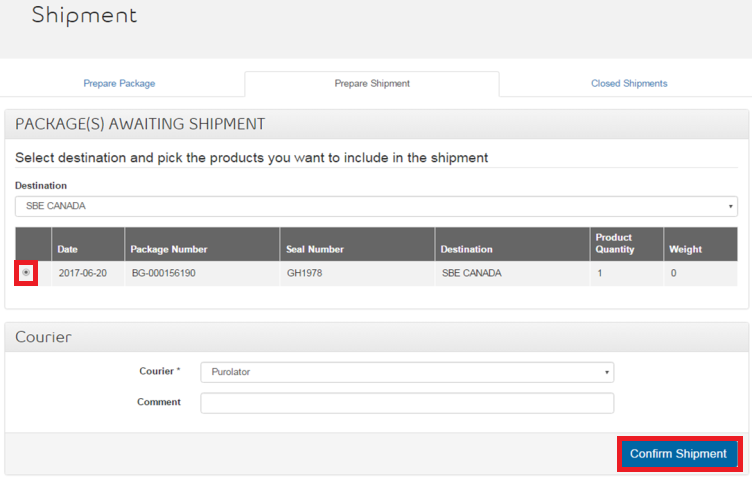
Check the Package(s) Awaiting Shipment section to see all the packages for shipment. Click the checkbox to select a package.
In the Courier field, select Purolator, and then click ‘Confirm Shipment’.
Click Print Paperwork.
- Click File and then Print
- Place waybill inside tote bag window
- Close and seal bag