
Closing Purolator
After shipping has been completed for Purolator, you will need to download the trackers and save it in common files. You will then also need to close the manifest.
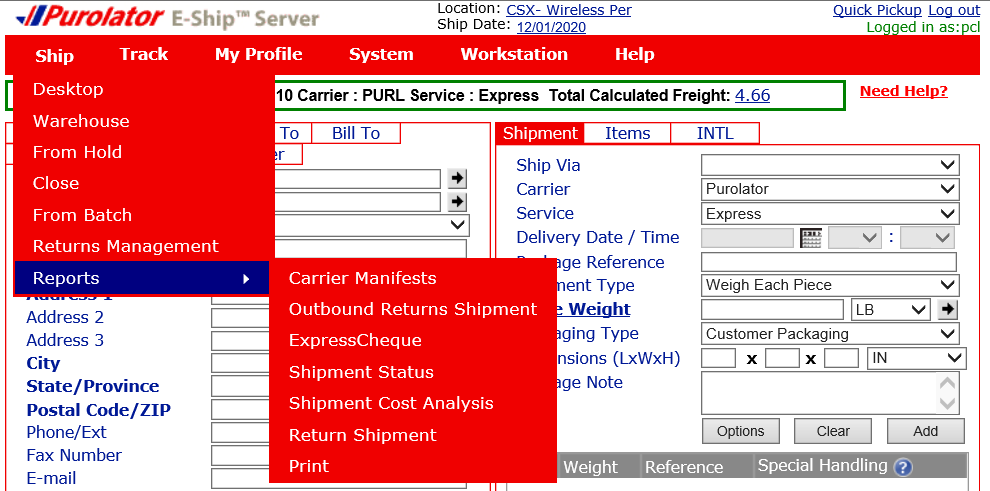
First, you will need to save the tracking details in common files. To download the report click on ‘Ship’ on the top bar. Go to Reports and select ‘Shipment Cost Analysis’.
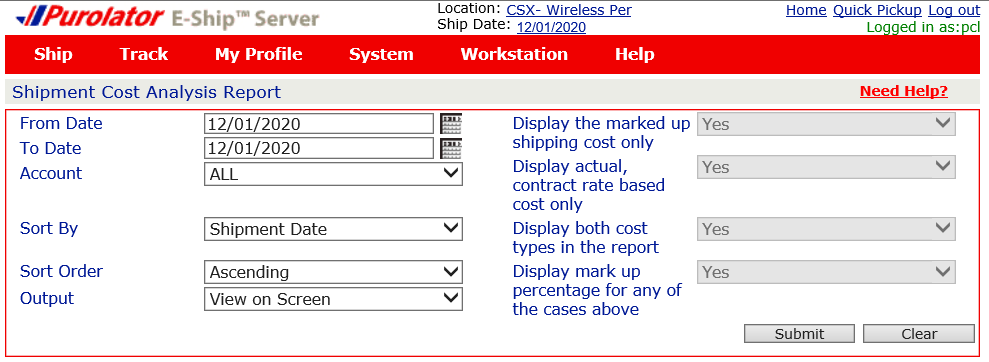
Once you are in the Shipment Cost Analysis Report screen, the only thing you will need to change is the date. Generally this is done daily so you will change the From/To date to today’s date. Once that has been done click on ‘Submit’.
This step will take a few moments. You will notice at the top right screen it will say “Processing…”. Just wait and then the PDF file will open automatically. Once the file has downloaded and opened automatically click on the save icon and save it into the correct folder in common files.
The file should be saved in common files under SHIPPING>PUROLATOR>2020 … etc
Please be sure to save it under the correct date. Always use the same filename convention.
Filename eg: PUROLATOR – Dec 01, 2020
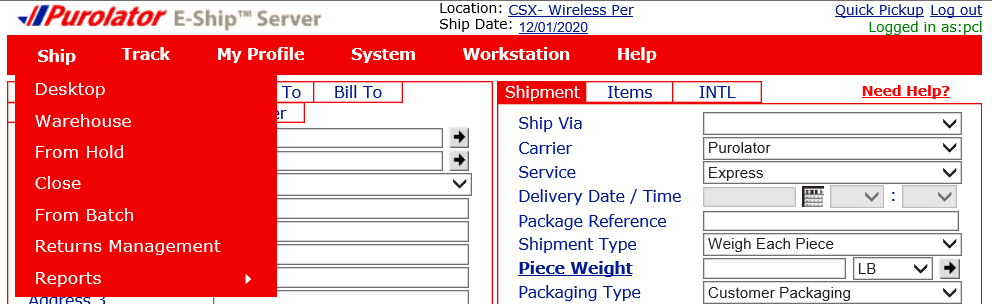
After the PDF file has been saved you will now need to upload the manifest to the Purolator server. To close/upload the manifest click on ‘Ship’ and select ‘Close’.
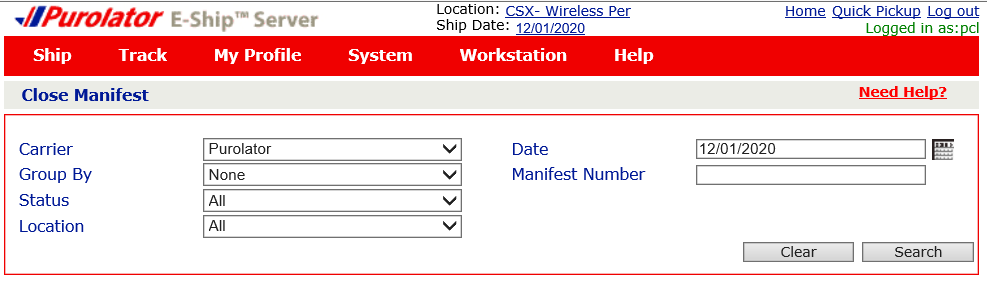
From the Close Manifest page click on ‘Search’. You are not required to change anything on this page. Just ensure the date is correct.
Once the page has loaded, it will display how many packages you shipped for the day. Click on the check boxes on the left hand side of the screen and click on ‘Close/Upload’.
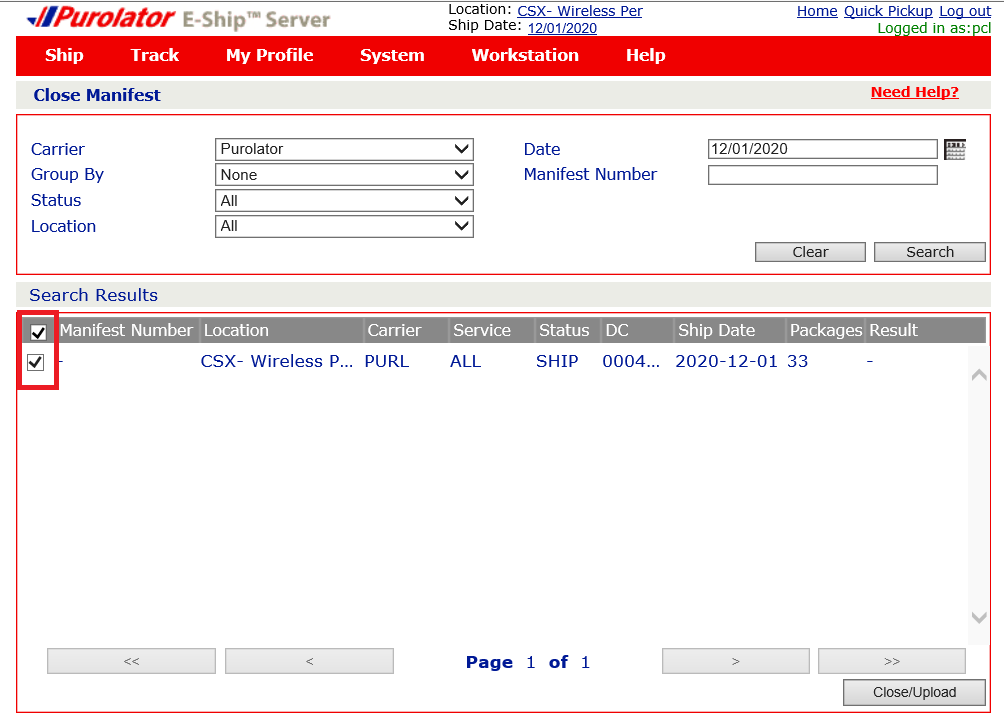
It will say ‘Processing …’ on the top right hand side corner of the screen. Once this process has completed it will say ‘Manifest uploaded successfully’ under Results.